
Explore Aido
A day with Aido
From a passing thought to a finished to-do—and a little thanks to a friend. Take a look at the small moments that make a day with Aido.
Captured in the real iOS and Android apps with example accounts. Names and plans are sample data.
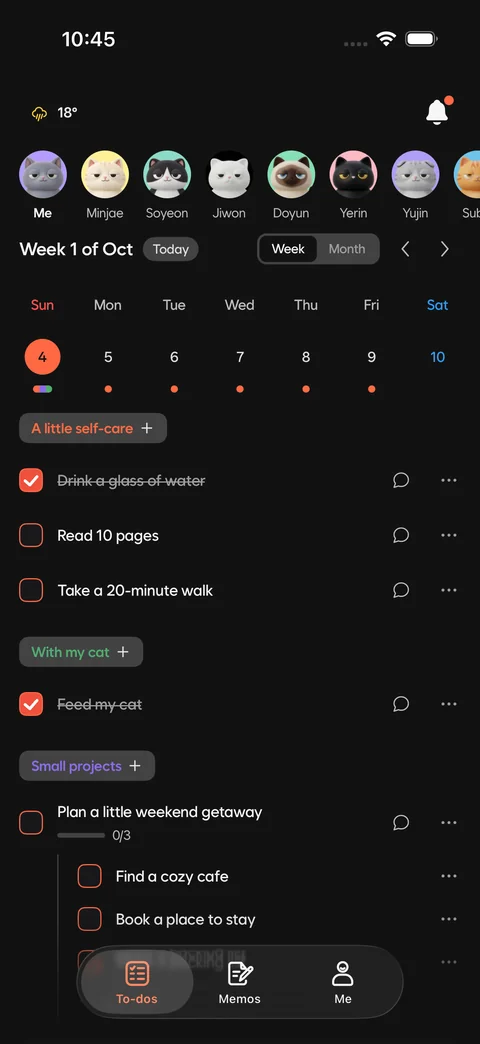
Start with today. See the whole month.
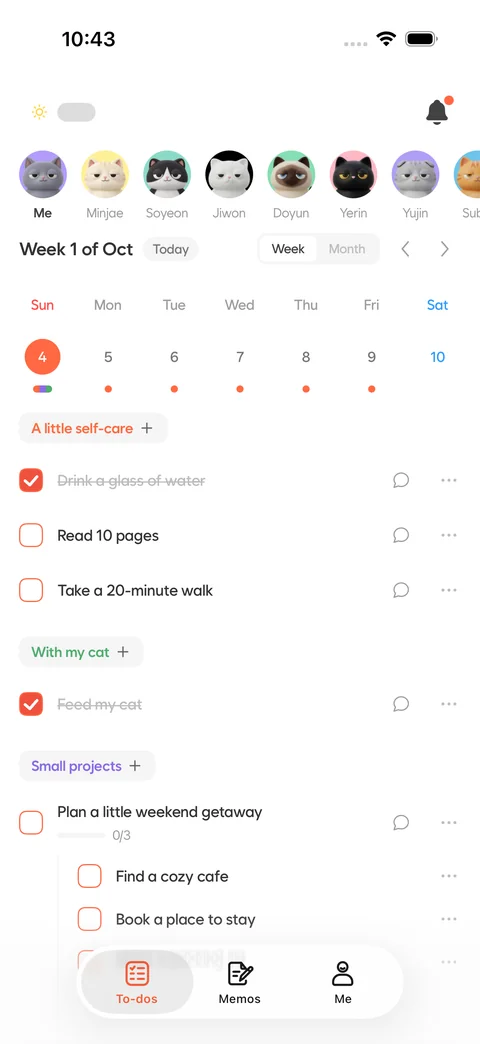
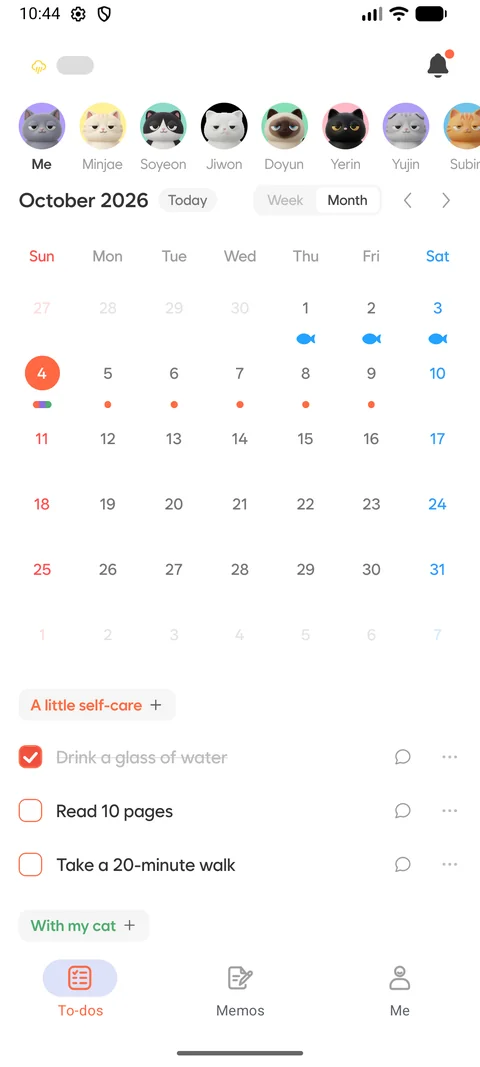
Make room for your plans in weekly and monthly calendars.
- Tap a date to see its to-dos, then return with Today.
- Category colors keep plans clear. A little paw print marks a day you finished.
Big plans, small steps
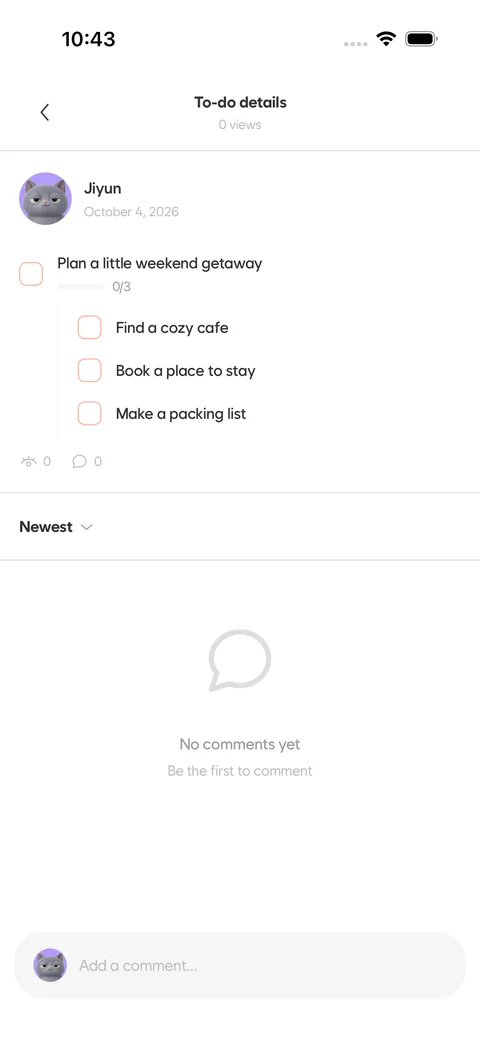
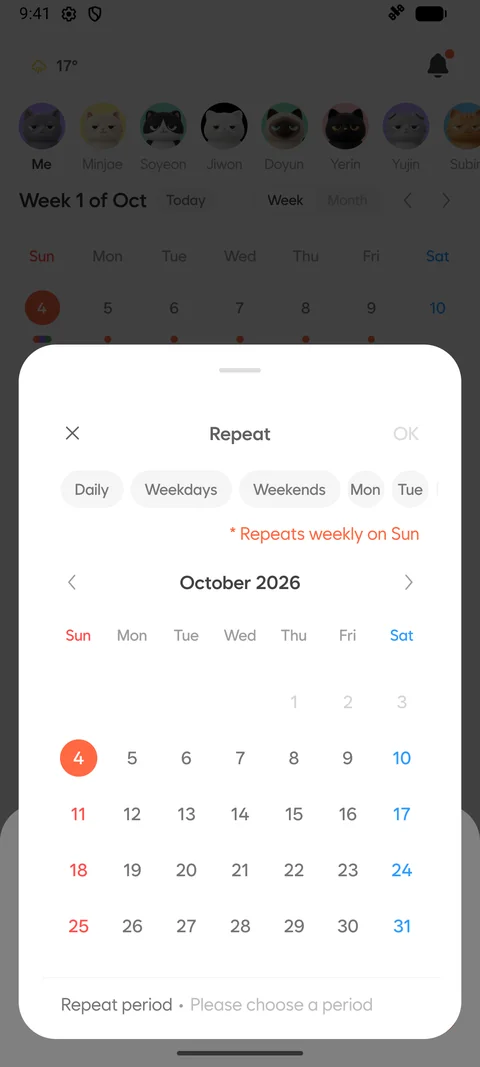
Give a to-do a date, time, repeat schedule and checklist.
- Break a plan into checklist items you can work through.
- Repeat daily, on weekdays or weekends, or on days you choose.
- Choose who can see each to-do. Some plans can stay just yours.
A thought doesn’t need to be a plan yet
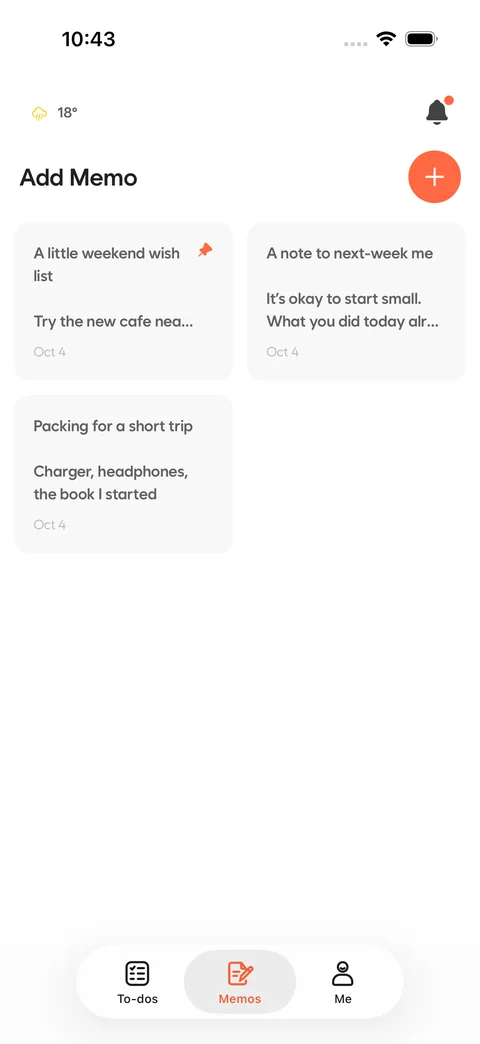
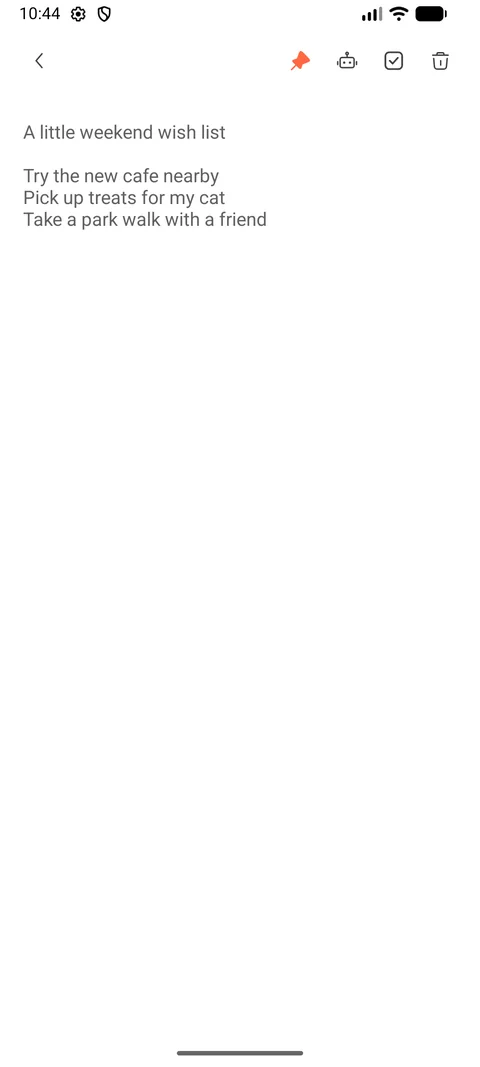
Keep a note for now. Turn it into a to-do when you’re ready.
- Pin the notes you return to and arrange them your way.
- Turn a note into one to-do, or let AI split it into several.
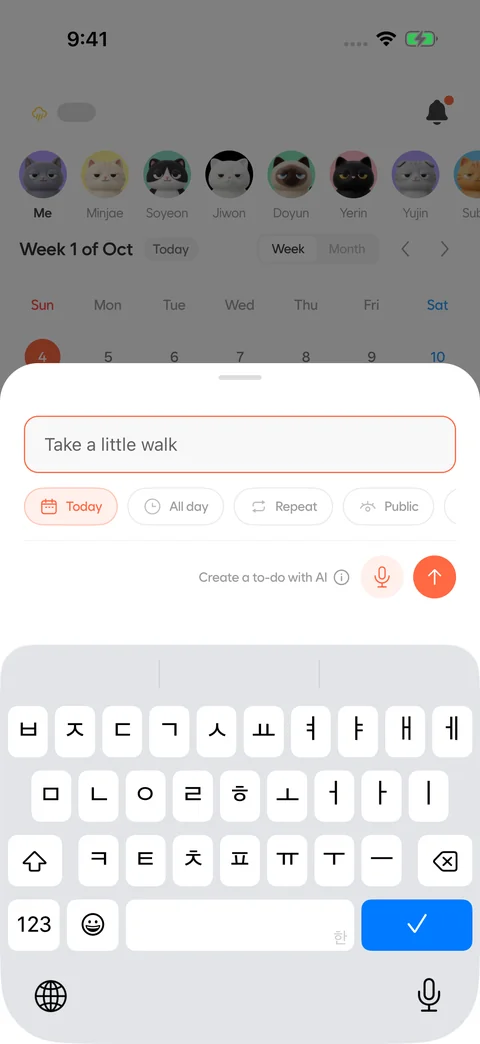
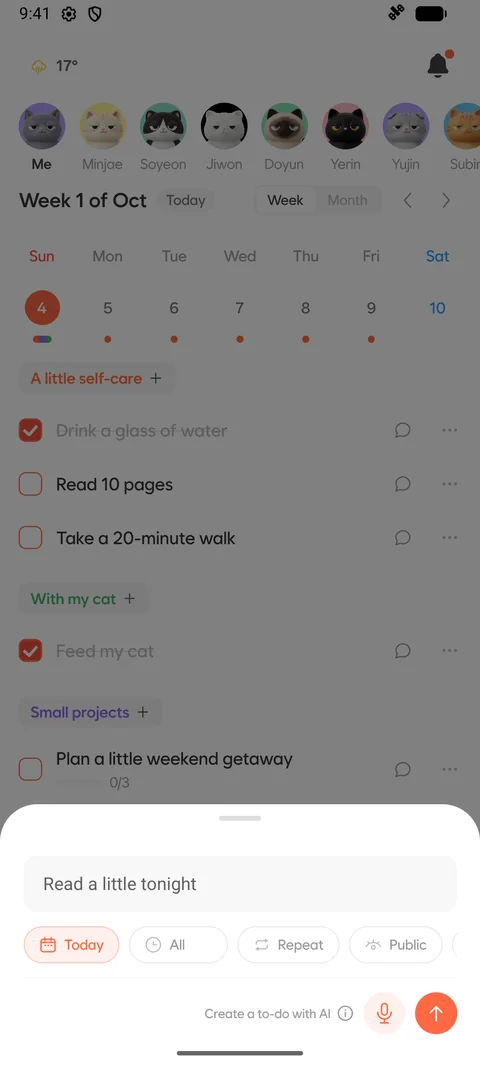
Type it as you think it. Say it as you go.
Add to-dos in everyday language or with voice input.
- Include a date and time, and AI helps turn your words into a plan.
- Review the to-dos extracted from a note before adding them.
- Check the app’s current plan information for AI input limits.
A little company for your day
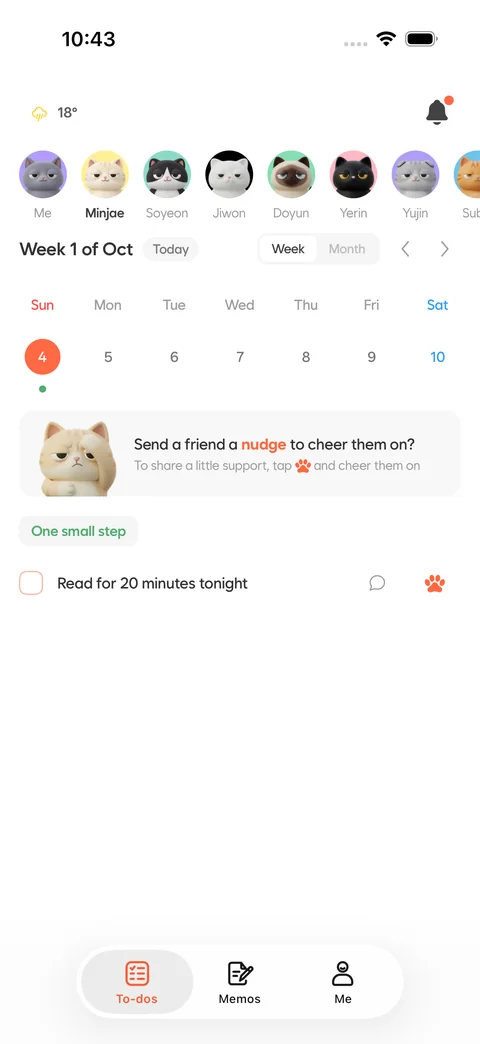
See the to-dos friends share, each with a cat of their own.
- Find friends by name or their unique hashtag.
- Send a nudge or leave comments and replies on a friend’s to-do.
- Keep track of your encouragement in Sent nudges.
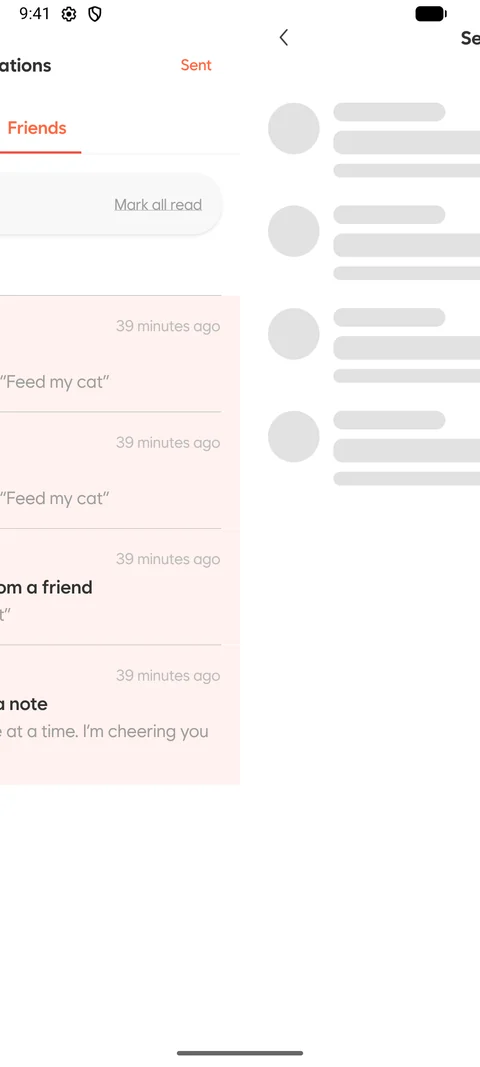
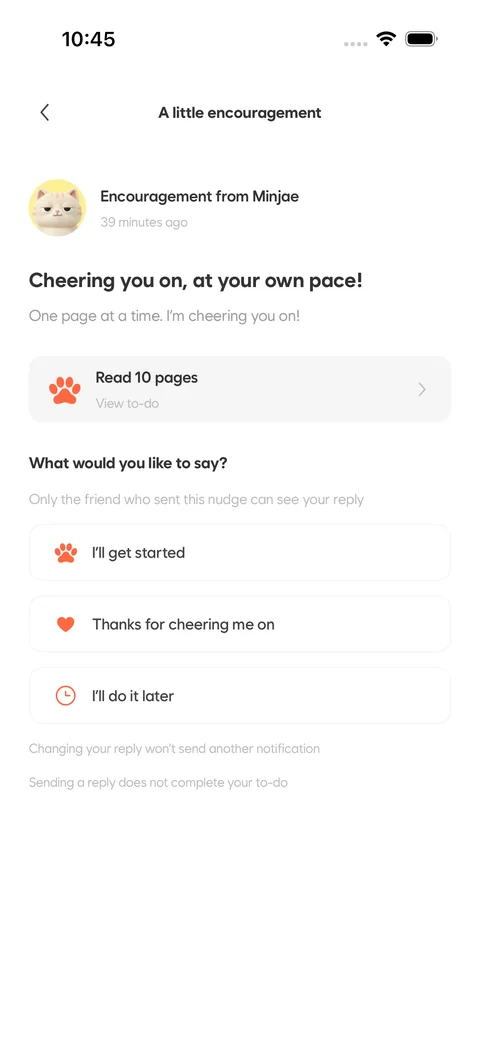
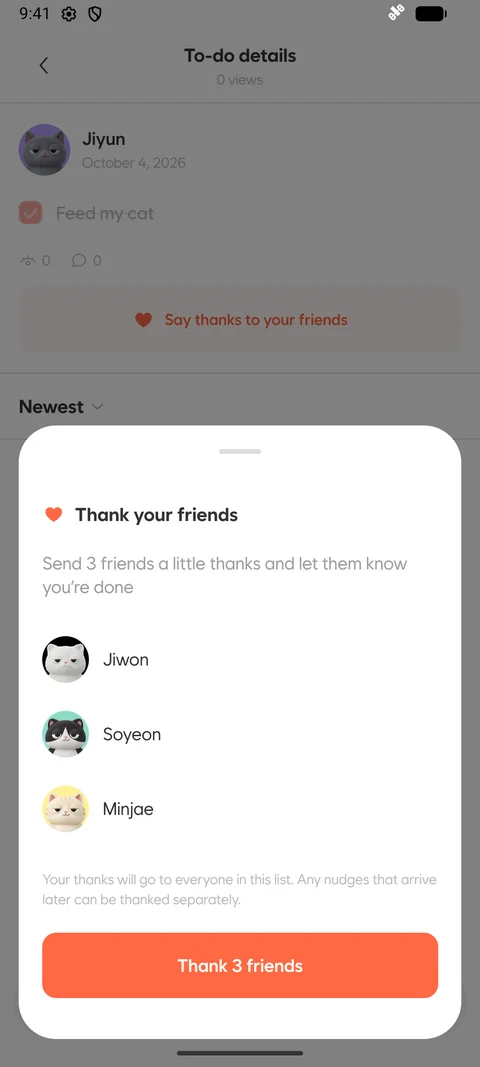
A reply for now. A little thanks when you’re done.
Reply to a nudge, then share your thanks after finishing a to-do.
- Choose the reply that fits: I’ll get started, thanks for cheering me on, or I’ll do it later.
- See who encouraged you and send the good news with your thanks.
- Sending a reply does not complete the to-do.
Friendly news and gentle reminders
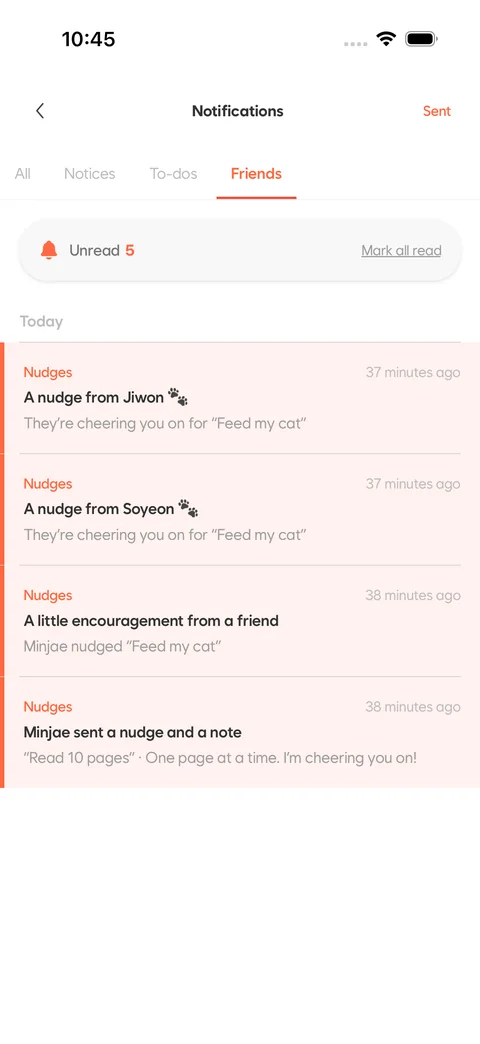
Find what matters in your notifications and open the right screen.
- Keep friends’ updates and nudges together in the Friends tab.
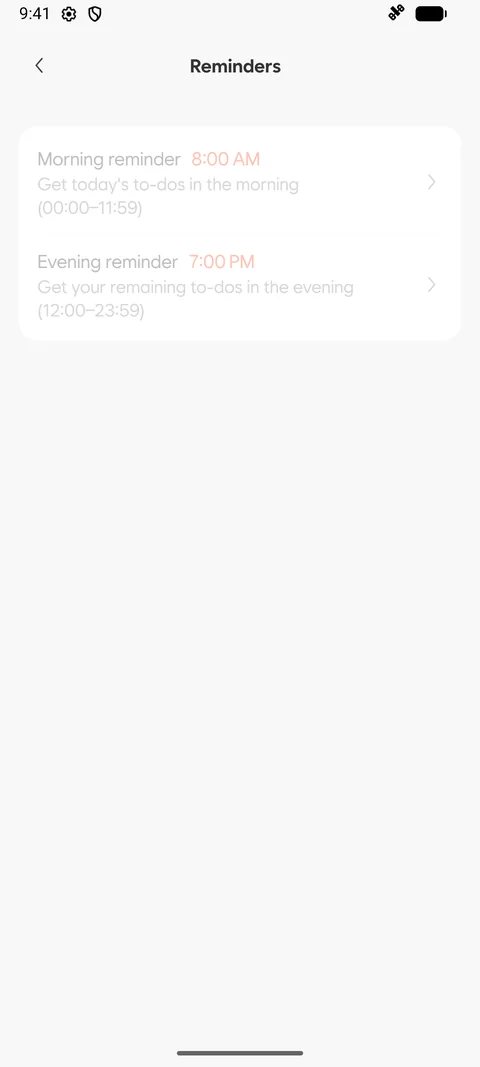
- Set morning, evening and weather reminder times around your day.
- Choose which alerts you want, including promotional notification consent.
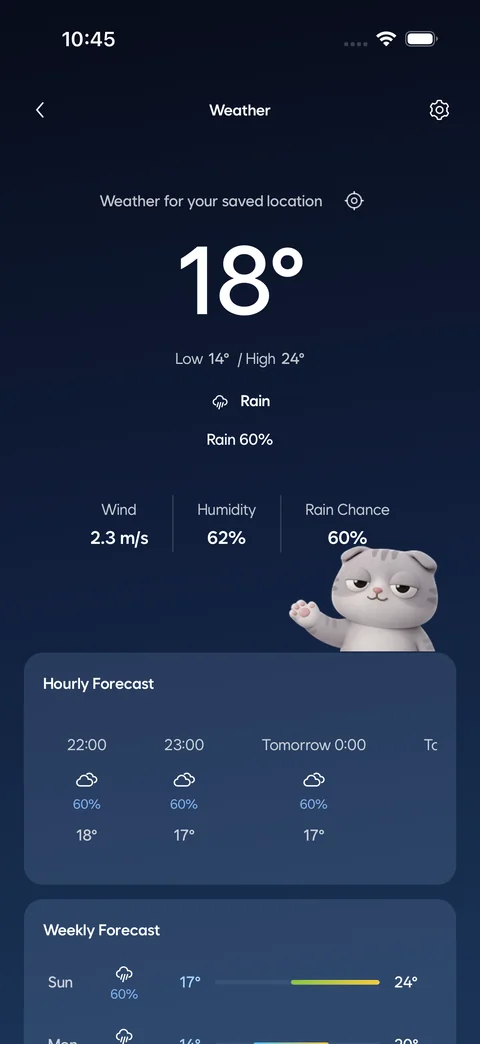
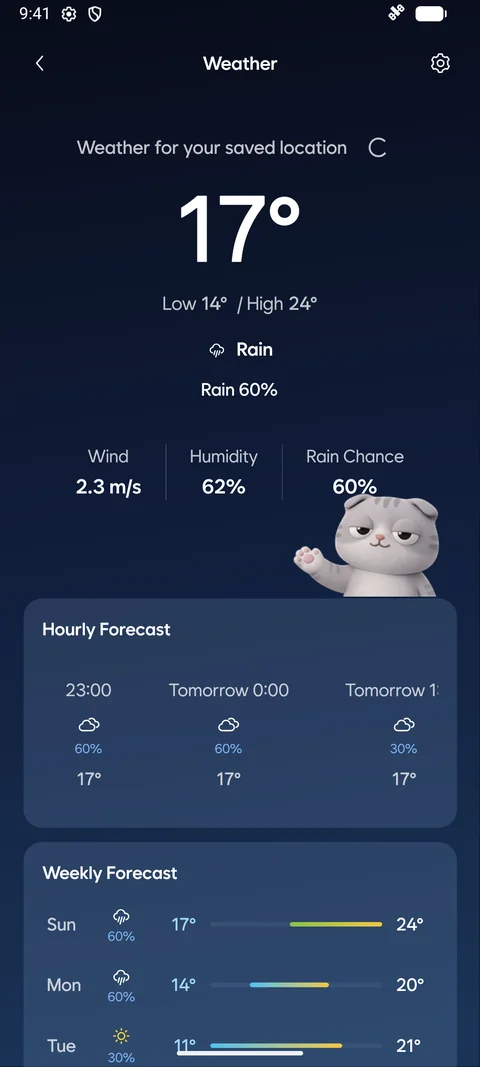
A quick look at the sky, before you go
Check the weather for your location alongside your plans.
- Open hourly and weekly forecasts from the weather button at home.
- Location access is your choice. To-dos keep working while weather is unavailable.
- Weather currently supports locations in South Korea. An information screen is shown elsewhere.
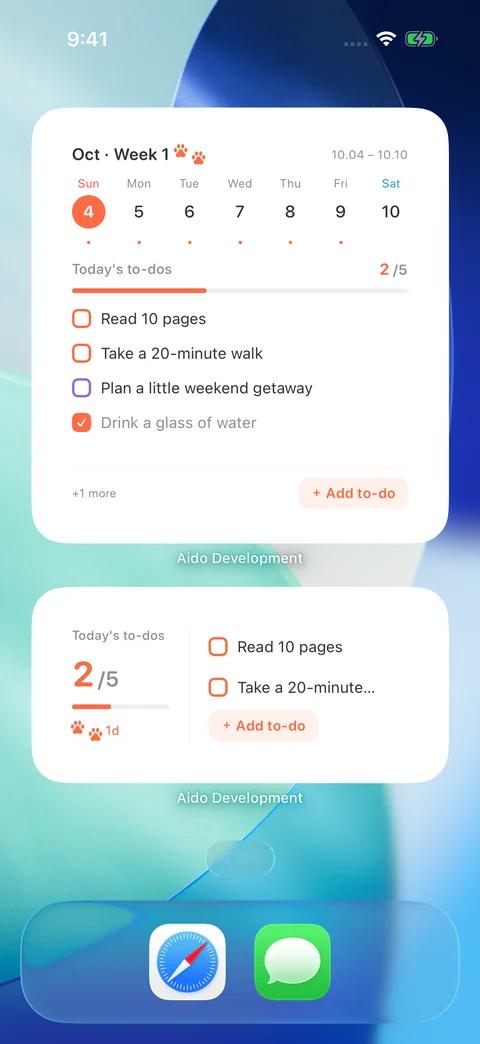
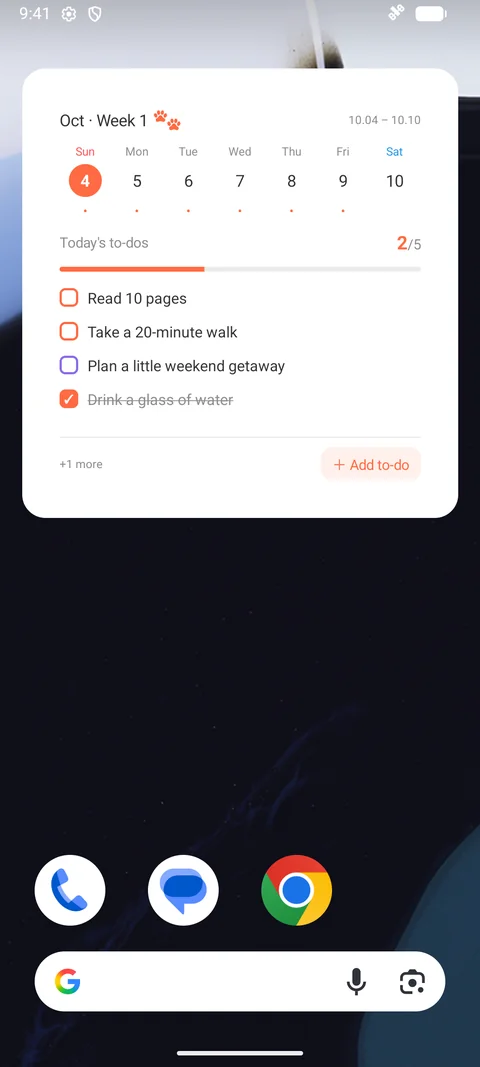
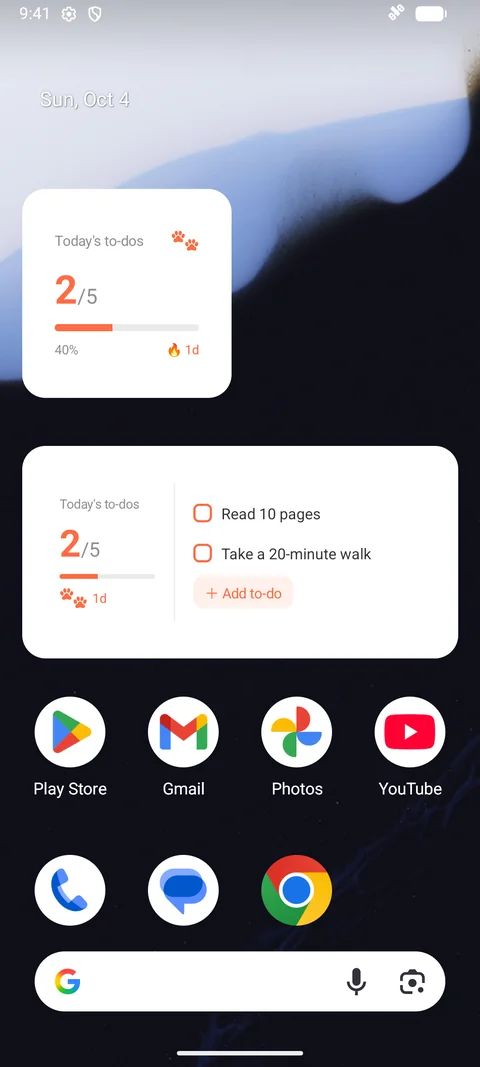
Today at a glance, right on your home screen
Choose a small progress view or a calendar with room for your plans.
- Small widgets show completed to-dos, progress and your streak.
- Medium widgets show today’s to-dos. Large widgets add a weekly calendar.
- Tap a to-do to open it in Aido, or start a new one with the add button.
- Widget refresh timing depends on your device and operating system.
Look back on your days. Find your next step.
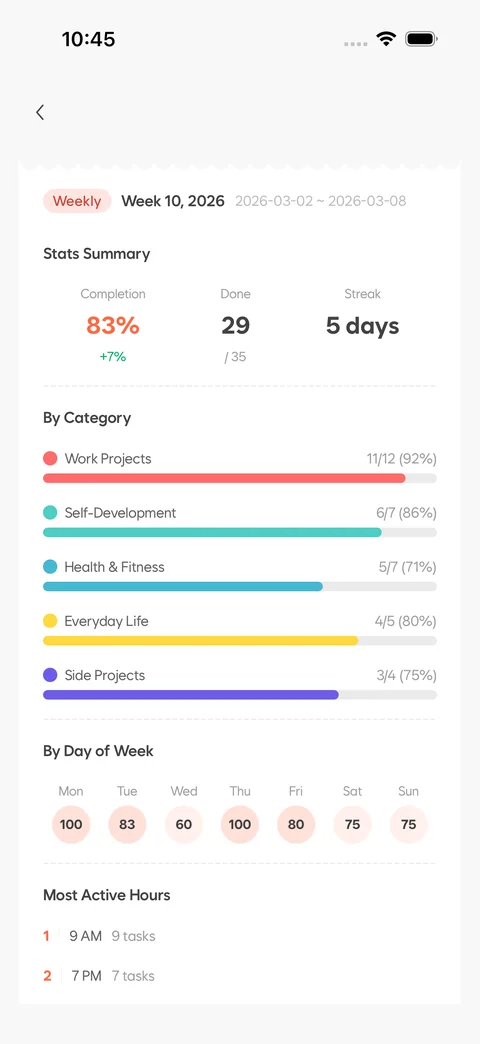
Reflect on your patterns with AI reports and recurring suggestions.
- Weekly and monthly reports show completion rates and category patterns.
- Review recurring suggestions and add the ones that fit your routine.
- The report and suggestions below are examples for this walkthrough.
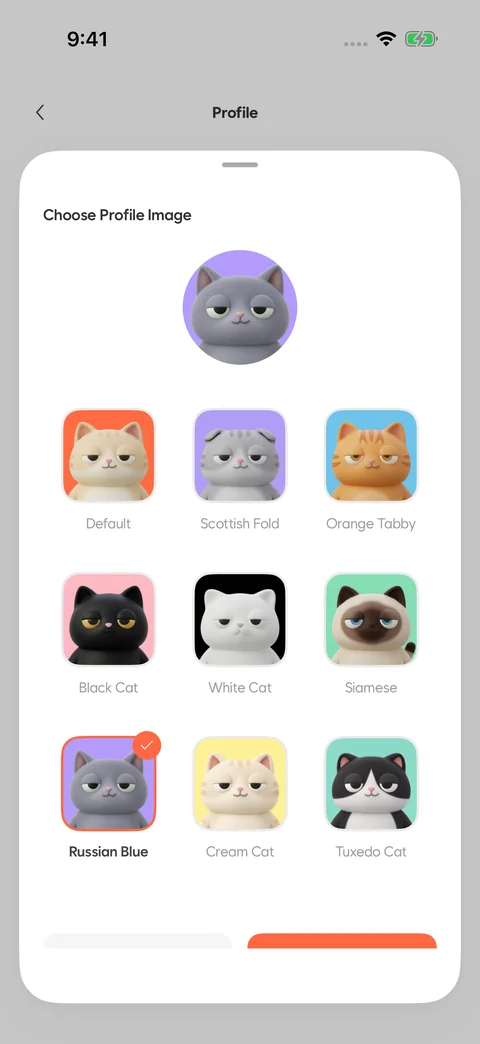
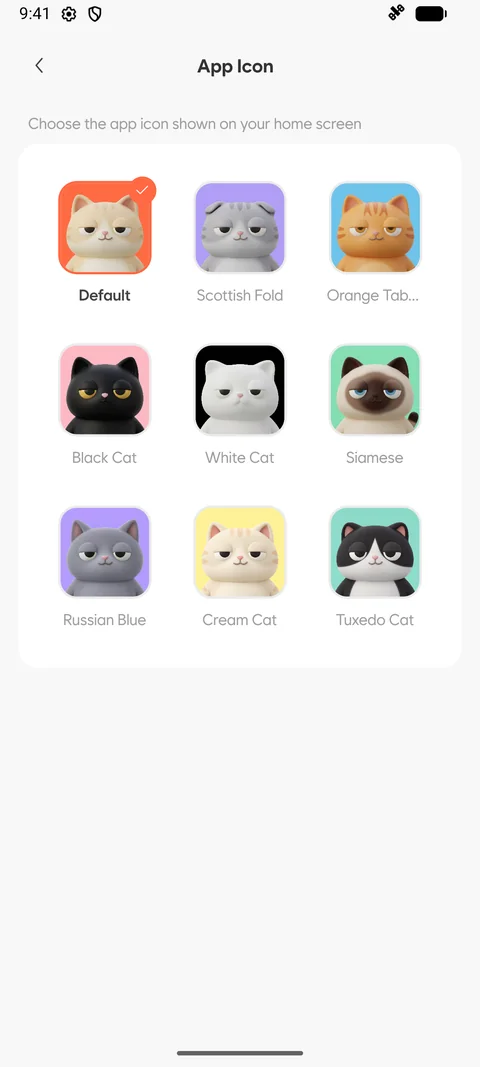
Your cat. Your Aido.
Make the app feel like you from My Page.
- Choose your profile from nine different cats.
- Set light or dark mode, text size and your app language.
- Premium also lets you change the app icon on iOS and Android.
How to manage your to-dos with Aido
Turn thoughts into to-dos, plan recurring activities and encourage friends along the way.
Turn notes and voice into to-dos with AI
Aido is a to-do list app that can turn a note into several to-dos and checklist items with AI. You can also type a sentence or speak to create a to-do. Review the results, select what you need and adjust the plan before you get started.
Read the guidePlan with recurring to-dos, calendars and widgets
Set up recurring to-dos in Aido for activities such as daily reading or weekday exercise. Review your plans in weekly and monthly calendars, and check today's to-dos and progress with home screen widgets on iPhone and Android.
Read the guideShare to-dos with friends and encourage each other
In Aido, you can see friends' public to-dos and encourage them with nudges, comments and replies. Manage your own to-do list and choose what to share. Keep personal to-dos private, and use the app on your own whenever you prefer.
Read the guideOne small step.
Let’s start together.
A perfect plan can wait. Make a little room for your day with Aido.
Start free · Some features require Premium