Your weather guide
Plan your day with weather and Aido briefing
Aido’s weather is all new. Check current conditions and hourly and 10-day forecasts anywhere in the world, while Aido briefing matches today’s scheduled to-dos with the weather. Here’s what each part of the screen shows, when the briefing says what, and how moving times and notifications work.
Content reviewed
Start with these steps
- 1
Open the weather screen
Tap the weather button on Home. Allow location access to see the weather where you are. Tap the refresh button at the top right to update it anytime.
- 2
Check Aido briefing
Right below the current weather, see today’s scheduled to-dos alongside the weather at those times. Check off to-dos right there, or tap ⋯ to edit them.
- 3
Move to-dos that clash
If a to-do clashes with rain or heat, tap “Move to a dry time” or “Move to cooler hours.” Pick a suggested time with less rain or heat to move them all at once, and undo if you change your mind.
- 4
Get morning and evening weather notifications
Turn on weather notifications to hear about the weather each morning and evening. If a to-do clashes with rain or heat, tap the notification to move it right away.
Try it in your day
Say you’ve planned a dog walk at 3 PM and rain is on the way. Here’s how it goes.
- If there’s a 50% or higher chance of rain at 3 PM, the briefing shows that to-do first.
- Tap “Move to a dry time” for a time with less rain. Pick one and it moves right away, and you can undo it.
- If there’s a clear stretch, the briefing suggests a walk then. Tap the suggestion to open Add to-do already filled in.
This is an example of how it works. What you see depends on the day’s forecast and your to-dos.
From top to bottom
- 1
Current weather
Your location, current temperature and conditions, and today’s high and low. The background moves through 18 lifelike weather scenes, with the sun by day and the moon by night. Below-zero signs and the ° symbol are smaller, and the big title shows just the city name.
- 2
Aido briefing
Matches today’s scheduled to-dos with the weather at those times. The table below shows what it tells you.
- 3
Next-hour precipitation
Tells you about rain over the next hour, minute by minute, like “Rain starts in 39 min.” Shown only in supported areas.
- 4
Hourly and 10-day forecasts
Swipe through 24 hours of conditions, temperatures, and chances of rain. The 10-day forecast shows each day’s high and low, with a dot on days that have to-dos.
- 5
Weather details
Feels-like temperature, UV index, wind, precipitation, humidity, visibility, pressure, cloud cover, and sun and moon (moonrise, moonset, and moon phase). In Korea, air quality is shown too.
- 6
Weather alerts and data sources
Weather alerts appear when there are any. Forecasts come from Apple Weather, and the screen shows the Apple Weather attribution and data source links.
18 kinds of weather, in motion
From rain, snow, and hail to thunderstorms, fog, heat, and freezing cold, the sky moves just like the real thing. The sun shows by day and the moon by night. Every scene is recorded in the app (Korean UI).
ClearNight Mostly clearDay Partly cloudyDay Mostly cloudyDay CloudyDay FoggyDay HazyDay WindyDay DrizzleDay RainNight Heavy rainDay ThunderstormsNight SleetDay SnowDay Heavy snowDay HailDay HotDay FreezingDay
Real screens, case by case
Rain, heat, clear skies, abroad and offline: here’s what the weather screen tells you in each case.
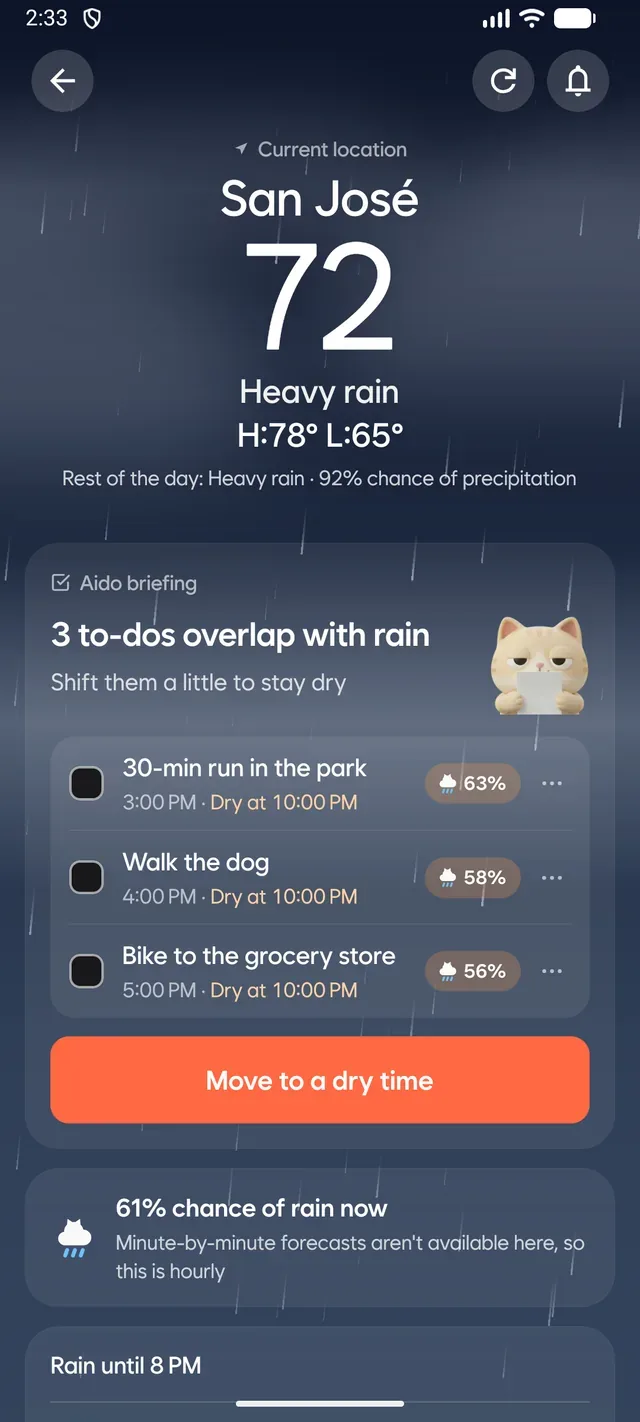
When rain overlaps your to-dos
If there’s a 50% or higher chance of rain at a to-do’s time, the briefing lists those to-dos first.
- Each to-do’s chance of rain and when it dries up
- A ‘Move to a dry time’ button
- The chance of rain right now and when it stops
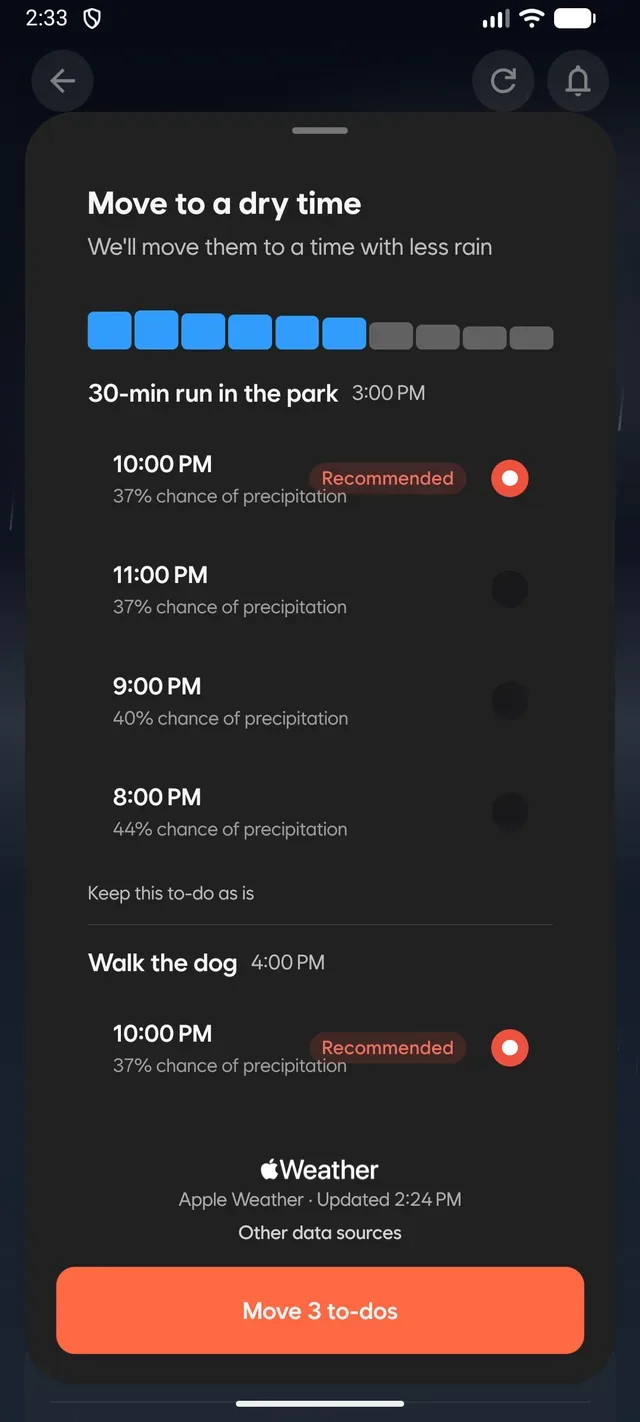
Move to a dry time
Get a suggested time with less rain for each to-do and move them all at once. You can undo it anytime.
- Upcoming rain at a glance as bars
- Chance of rain for each hour, with a ‘Recommended’ pick
- Leave a to-do as it is if you like
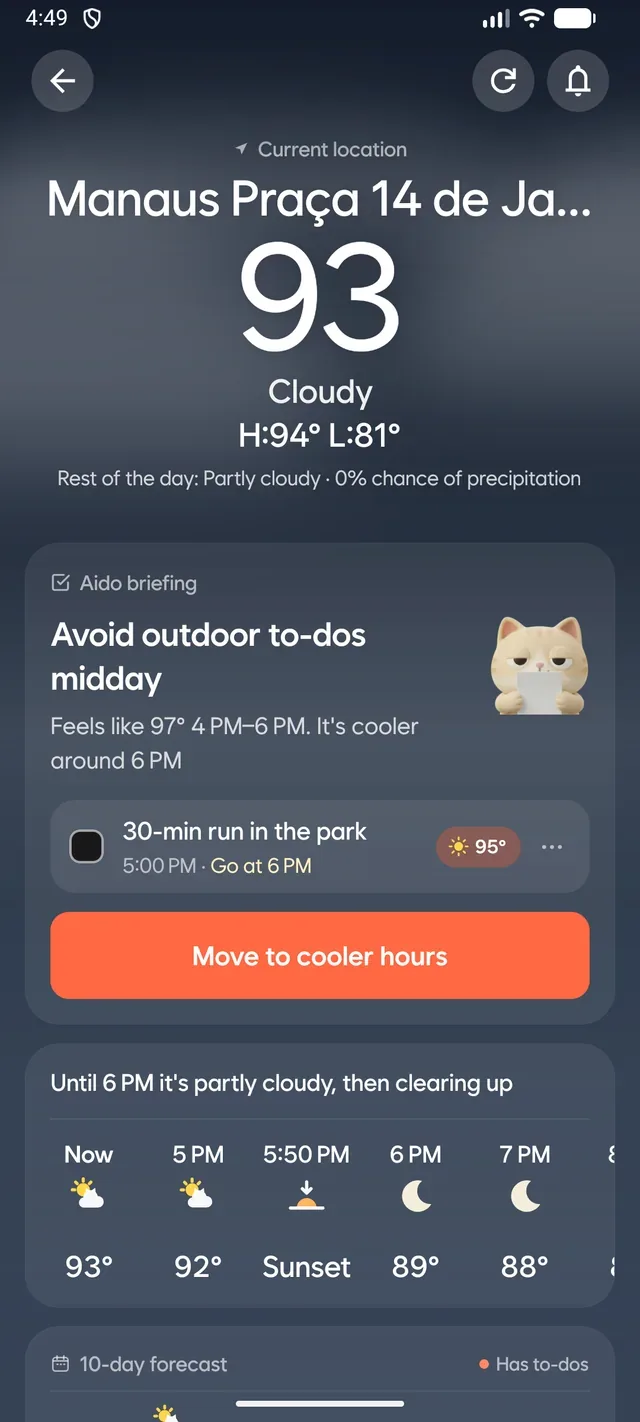
When it’s too hot
When it feels like 33°C (91°F) or hotter during the day, the briefing flags to-dos in the heat and points to a cooler time.
- The hottest hours of the day
- To-dos in the heat with their feels-like temperature
- A ‘Move to cooler hours’ button
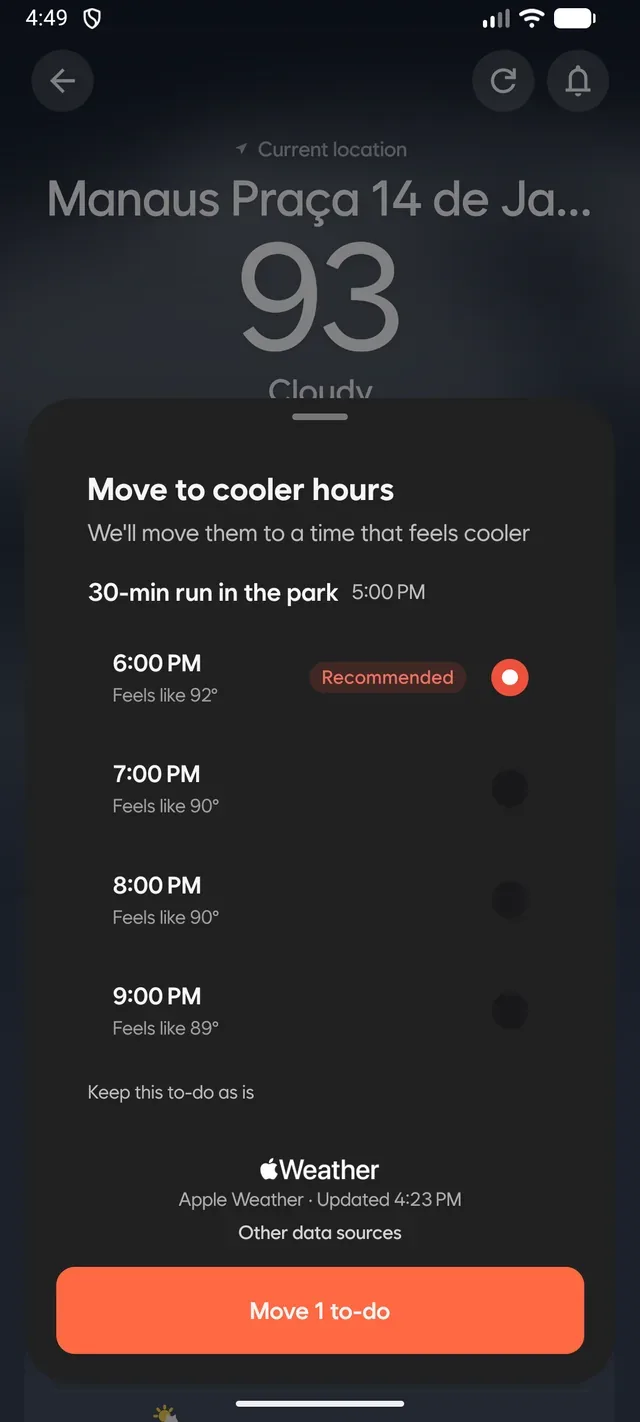
Move to cooler hours
See the feels-like temperature for each hour and pick the recommended cooler time. It moves right away.
- Feels-like temperature by hour
- A ‘Recommended’ pick for the coolest time
- Apple Weather attribution and last update
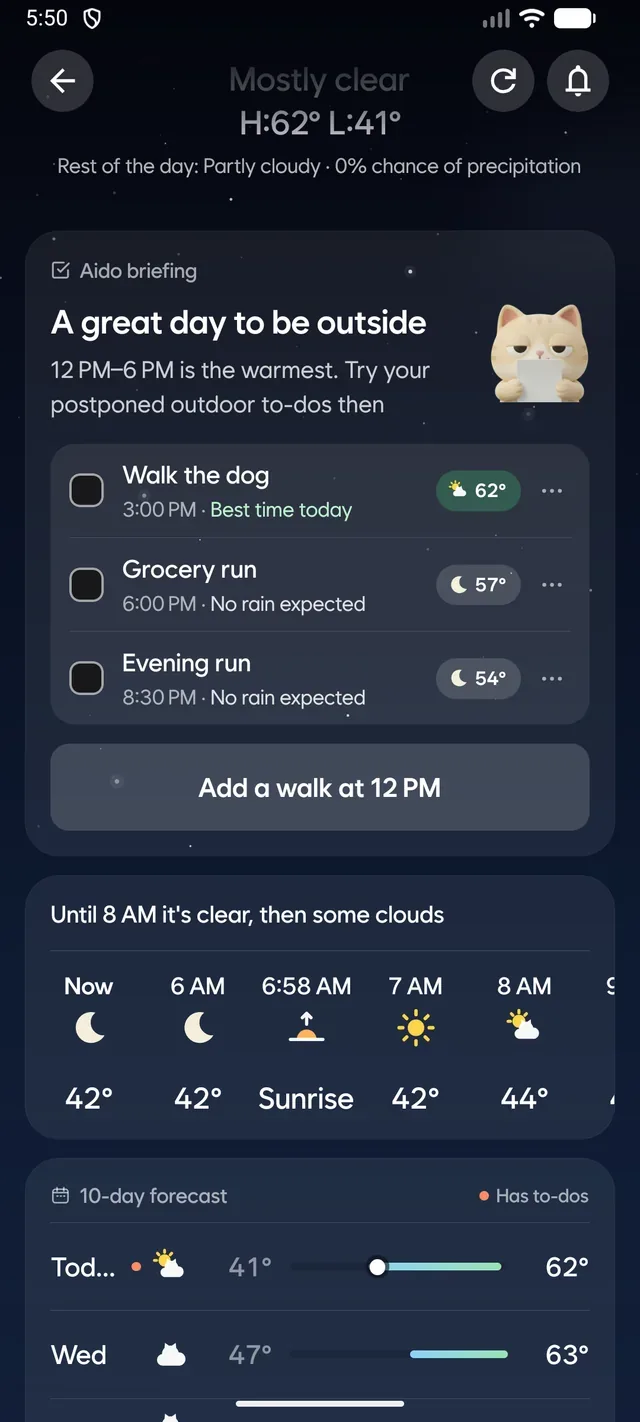
On a clear day
With no weather worries, the briefing tells you the best time to be outside and marks each to-do as all clear.
- The warmest hours of the day
- ‘Best time today’ and ‘No rain expected’ on each to-do
- A button to add a walk right away
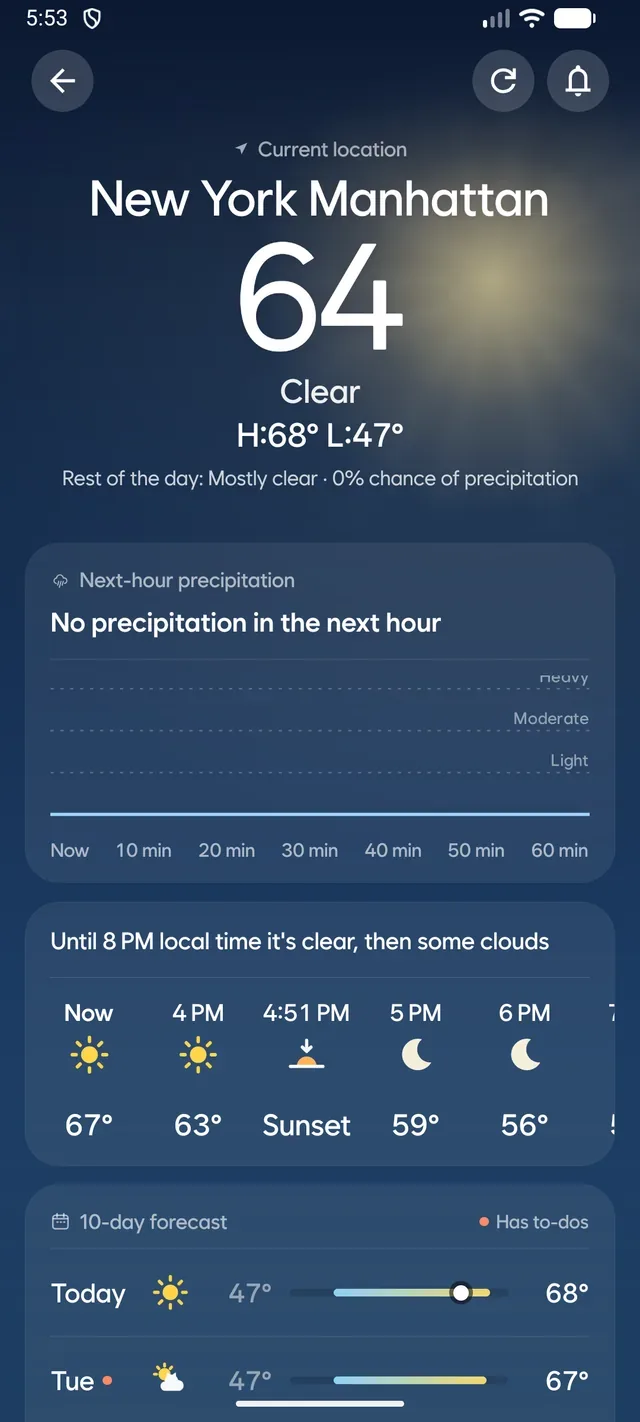
When you’re abroad
Weather in a different time zone from your device shows local times. The briefing is hidden so to-do times don’t get mixed up.
- A next-hour precipitation chart
- Forecasts in local time, like ‘Until 8 PM local time’
- A 10-day forecast by local date
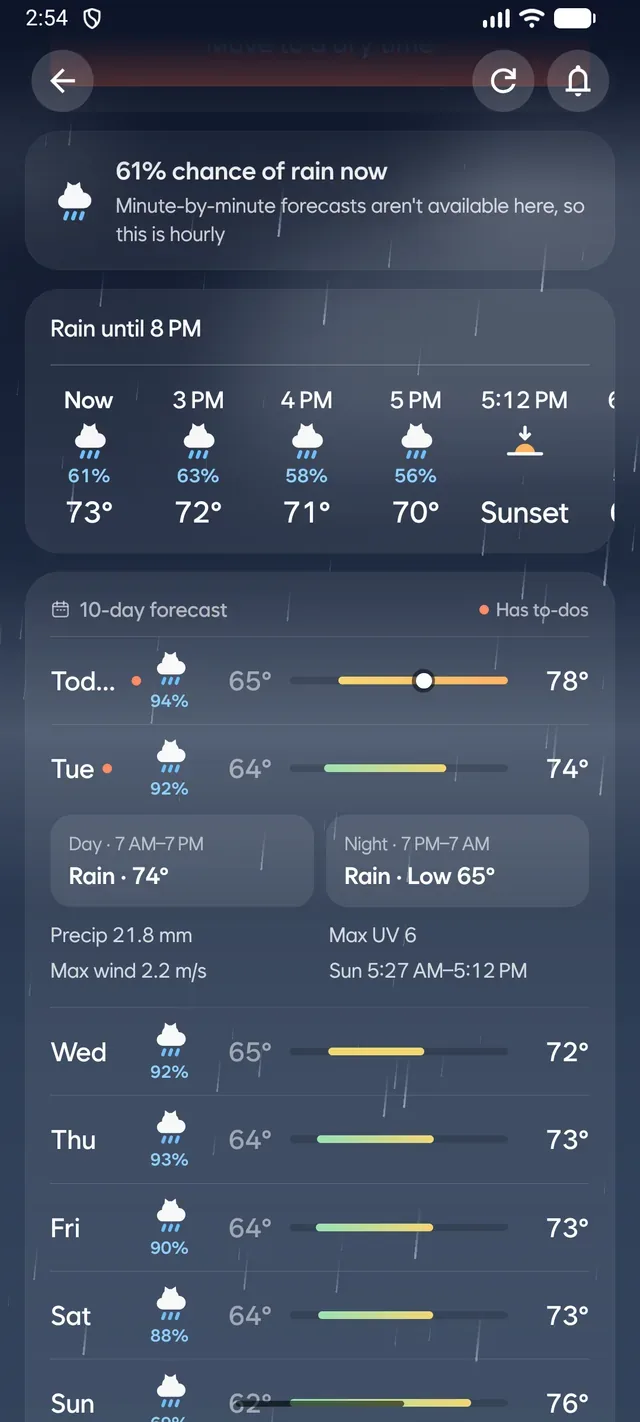
Open a day in the 10-day forecast
Tap a day to see its day and night conditions, precipitation, wind, UV index, and sunrise and sunset.
- Day and night conditions with highs and lows
- Precipitation, max wind and max UV index
- A dot on days with to-dos
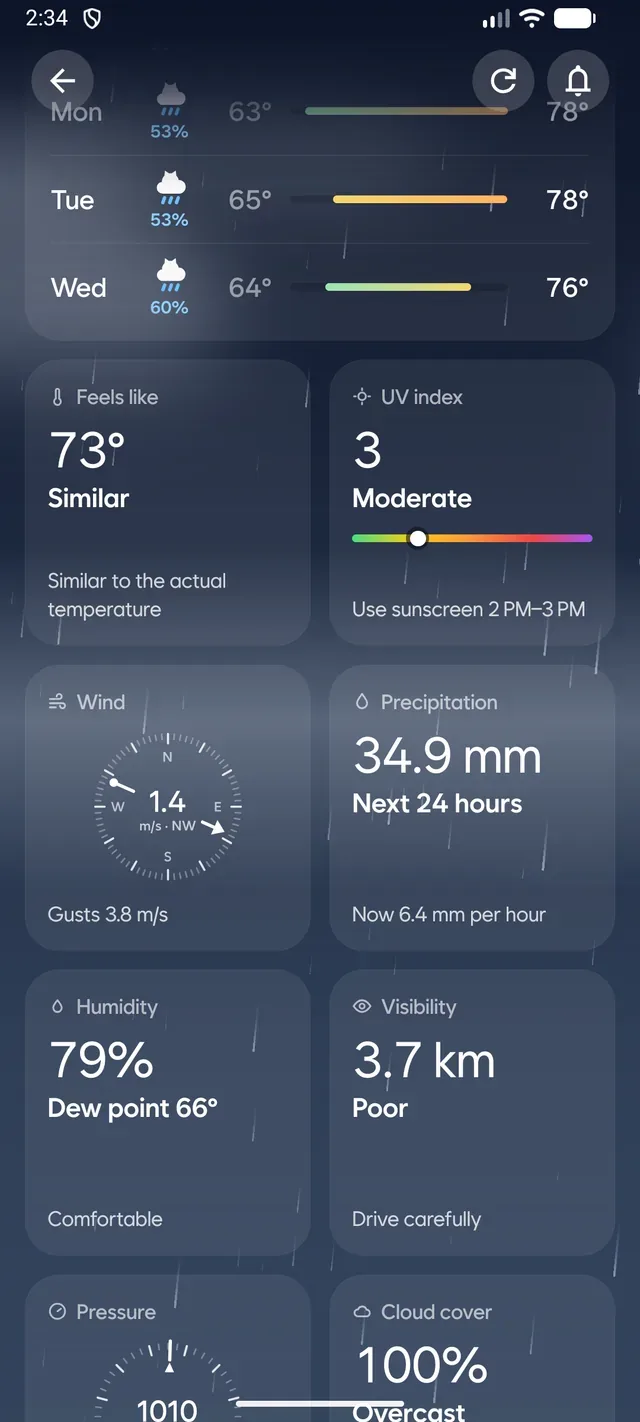
Weather details
Today’s conditions are split into tiles, each with a short tip on what it means for your day.
- Feels-like temperature and UV index (when to wear sunscreen)
- Wind direction and gusts, precipitation over the next 24 hours
- Humidity and dew point, visibility, pressure and cloud cover
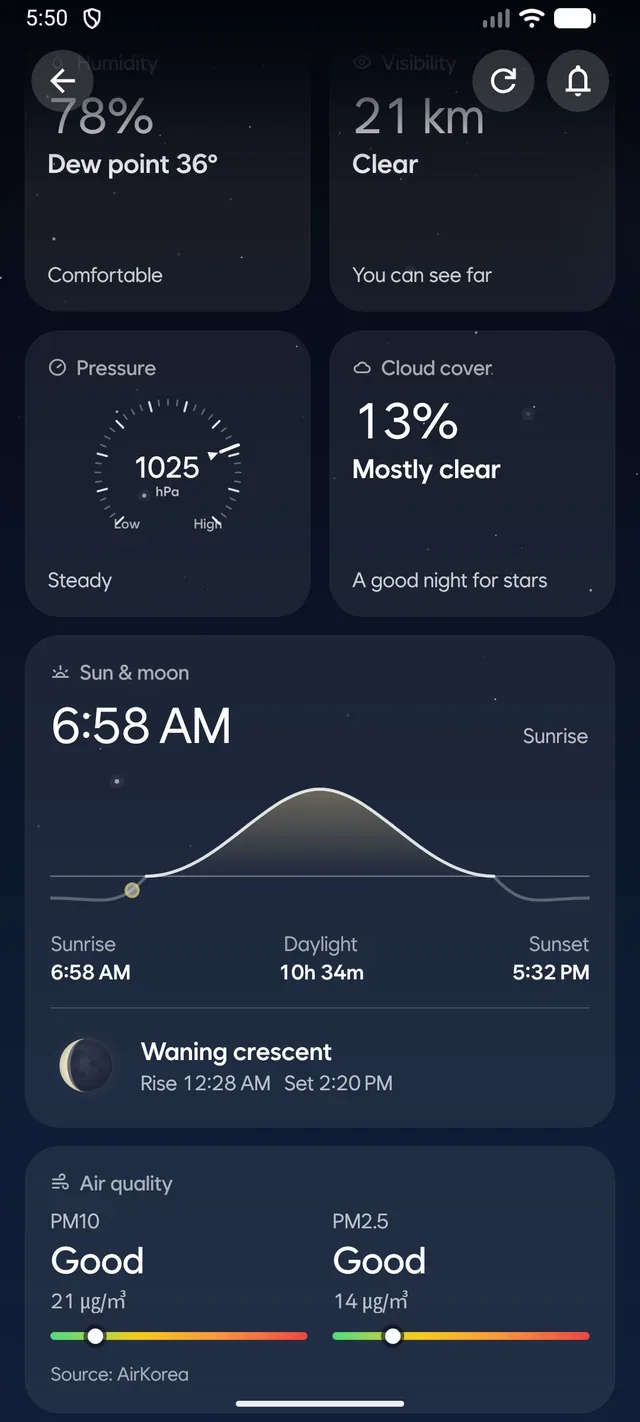
Sun, moon and air quality
See sunrise, sunset and daylight, plus the moon phase. In Korea, PM10 and PM2.5 air quality appear too.
- Sunrise, sunset and hours of daylight
- Moon phase with moonrise and moonset
- Air quality in Korea only, from AirKorea
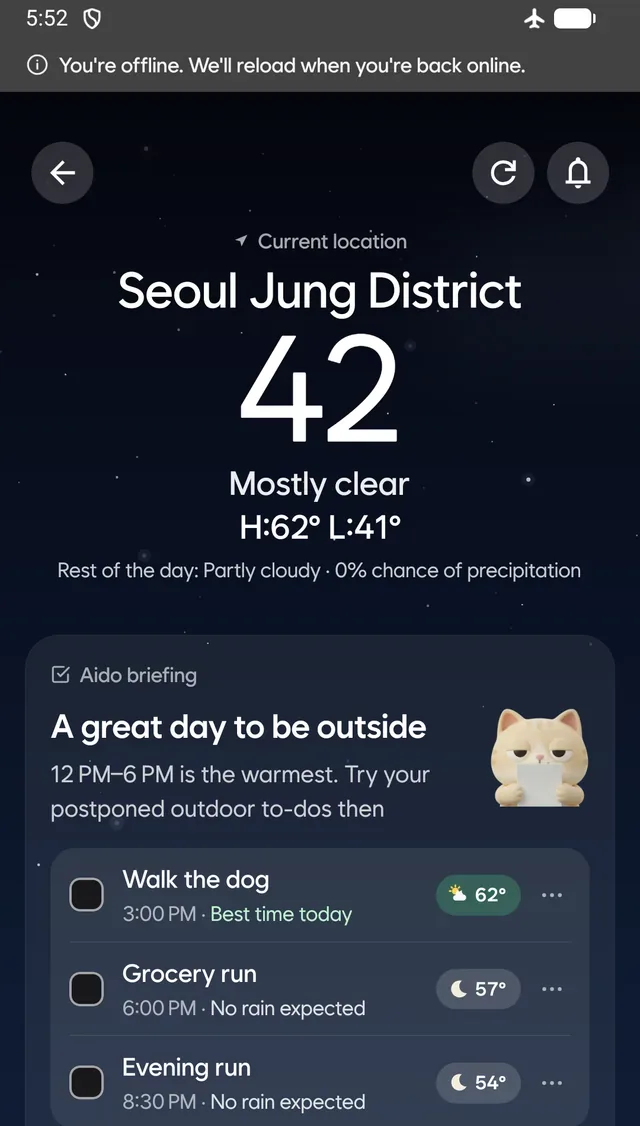
When you’re offline
A notice appears at the top, and your last-seen weather and briefing stay on screen. Everything refreshes once you’re back online.
- An offline notice at the top
- Your last weather and briefing stay visible
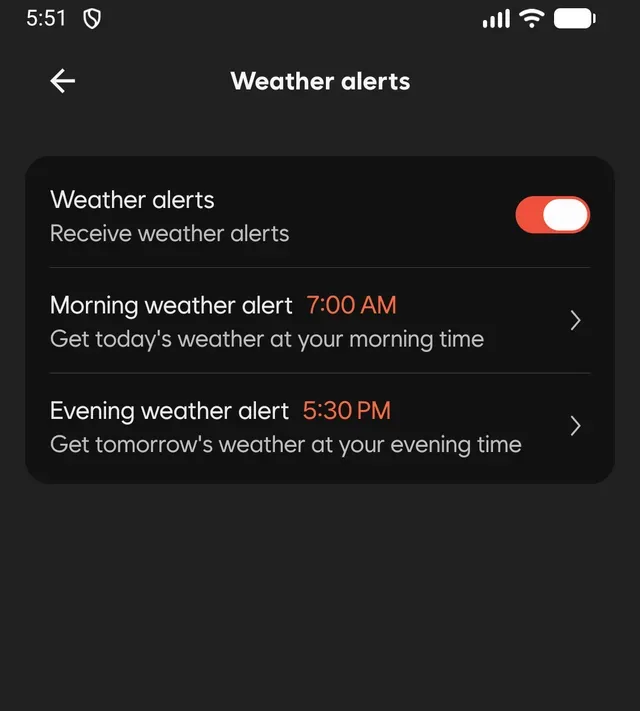
Weather notifications
Tap the bell at the top right of the weather screen to turn on weather notifications and set morning and evening times.
- Morning notification: today’s weather
- Evening notification: tomorrow’s weather
- Change the times anytime
What Aido briefing tells you, and when
The briefing checks these in order and shows the first one that applies.
| When | What you see |
|---|---|
| 1A 50% or higher chance of rain, snow, or lightning at a to-do’s time | Shows that to-do first and suggests moving its time. |
| 2A daytime feels-like temperature of 33 °C (91 °F) or higher | Warns you about the heat and suggests moving to-dos that clash with it. |
| 3Rain on the way soon | Suggests getting a to-do done before the rain starts. |
| 4A clear stretch of the day | Tells you the best time to be outside and suggests adding a walk. |
| 5No to-dos left today | Shows tomorrow morning’s temperature, and lets you know if it’ll be chilly (10 °C / 50 °F or below). |
| 6Everything looks fine | Lets you know your remaining to-dos are clear of weather worries. |
If the weather location is in a different time zone from your device, like when you check a place abroad, the briefing is hidden.
Room to breathe on bigger screens
Beyond iPhone and Android, bigger screens like iPhone Duo and iPad show current weather and forecasts side by side. Unfold a foldable for two roomy panes, too.
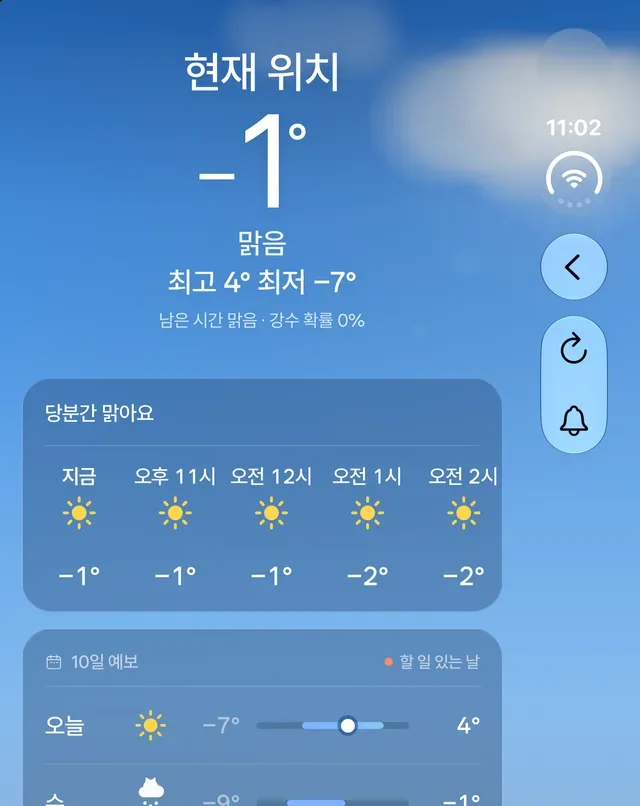
iPhone Duo
Unfolded, the buttons move to the right side so current weather and forecasts get more room.
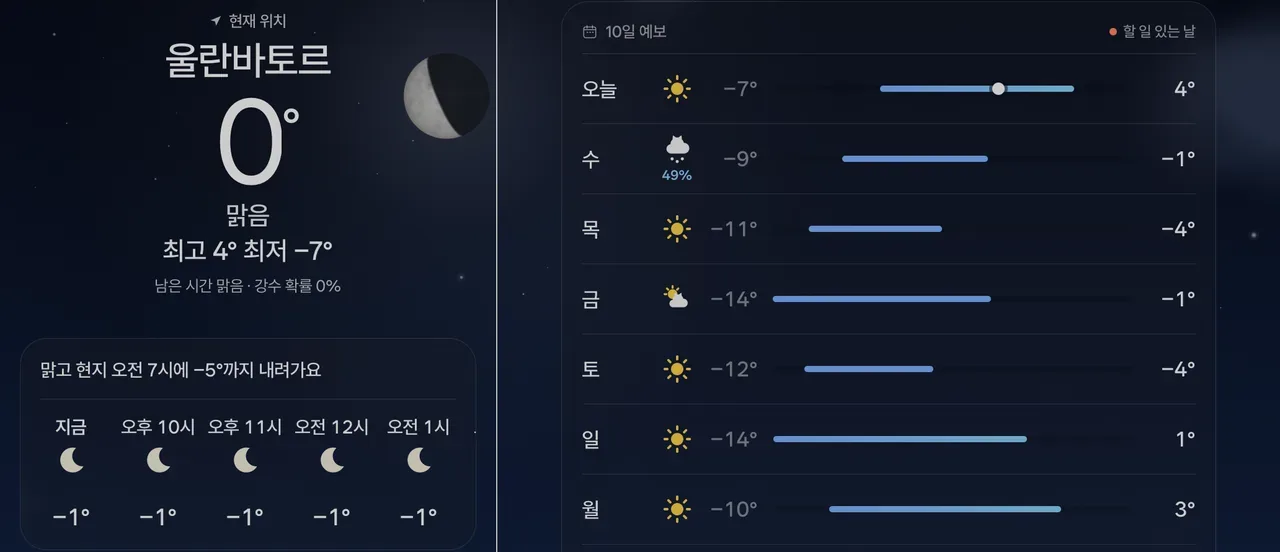
iPad
Current weather and the hourly forecast sit on the left, with the 10-day forecast on the right.
If your location can’t be found
Weather needs location access to show where you are. If it can’t find you, make sure location access for Aido and location services are on in your device settings, then tap refresh. Your to-dos keep working without weather.
When you’re abroad
You get the local weather and notifications abroad too. Weather for a place in a different time zone from your device shows local times, like “6 PM local time.” The briefing is hidden then, so to-do times and weather times never get mixed up.
When you’re offline
A notice appears at the top, and your last-seen to-dos and weather stay on screen. Everything refreshes automatically once you’re back online.
Your location is used only for weather
We look up weather by a roughly 5 km area instead of your exact spot. Location access is your choice, and you can change it anytime in your device settings.
Questions
Why don’t I see the briefing?
The briefing is hidden when the weather location is in a different time zone from your device. If you’re viewing a place abroad, check again for a place in your device’s time zone.
Why don’t I see next-hour precipitation?
Minute-by-minute rain forecasts are shown only in supported areas. Elsewhere, Aido tells you about rain hour by hour.
Can I undo a moved to-do?
Yes. Tap undo after moving it, and it goes back to its original time. You can also change the time yourself in the to-do’s details.
Where can I see air quality?
In the weather details. Air quality is available in Korea only and comes from AirKorea.